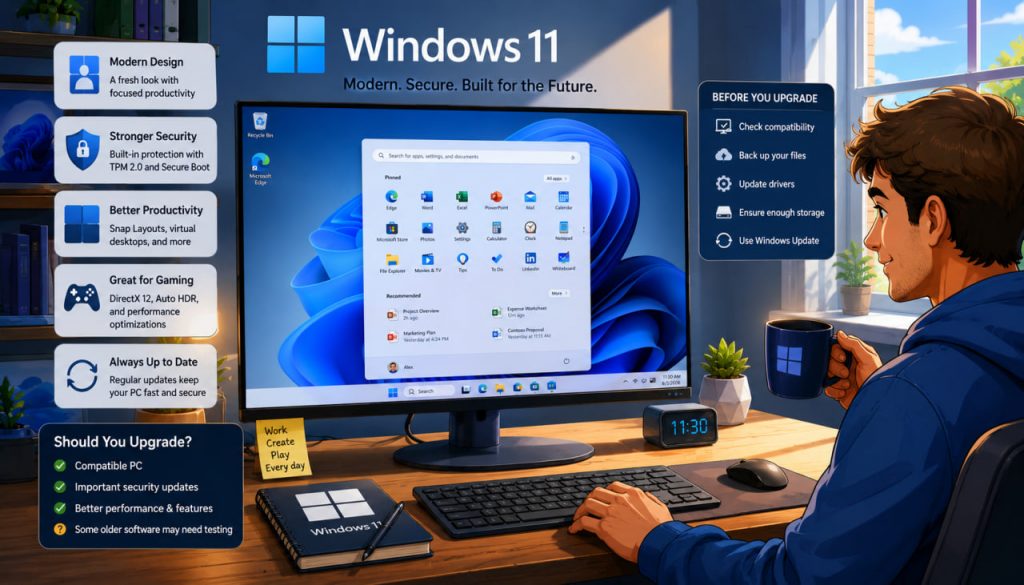
Windows 11 has matured considerably since its original release. It now offers a modern interface, stronger hardware-based security, improved window management, better support for current processors, and continued access to Microsoft’s latest features.
The most important change, however, is not visual. Standard support for Windows 10 ended on October 14, 2025, which means ordinary Windows 10 installations no longer receive free security fixes, feature updates, or technical assistance from Microsoft.
For most people with a fully compatible computer, upgrading to Windows 11 is now the sensible choice. Nevertheless, compatibility, performance, specialist software, and personal preferences should still be considered before making the transition.
What Is Different About Windows 11?
Windows 11 introduced a redesigned desktop with a centered Start menu, rounded interface elements, updated system applications, and a simplified taskbar.
Its practical improvements include:
- Snap Layouts for arranging windows
- Multiple virtual desktops
- Improved touchscreen behavior
- Updated accessibility tools
- Better support for modern displays
- Stronger security requirements
- Continuing feature and security updates
The operating system follows an annual feature-update schedule. Home and Pro editions generally receive 24 months of support for each annual release, while Enterprise and Education editions receive 36 months.
As of mid-2026, Windows 11 version 25H2 is the latest broadly available annual version. Version 26H1 exists primarily as a hardware-optimized release preinstalled on selected new devices and is not intended as a normal feature upgrade for existing 24H2 or 25H2 computers.
Windows 11 System Requirements
Microsoft requires more modern hardware for Windows 11 than it did for Windows 10.
The basic requirements include:
- A compatible 64-bit processor with at least two cores and a speed of 1 GHz or higher
- At least 4 GB of RAM
- At least 64 GB of storage
- UEFI firmware
- Secure Boot capability
- TPM 2.0
- DirectX 12-compatible graphics
- A display of at least 720p
The processor must also appear on Microsoft’s supported CPU list. Meeting the clock-speed requirement alone does not guarantee eligibility.
In practical use, 4 GB of RAM is only an official minimum, not an ideal amount. A modern computer with 8 GB can handle basic browsing and office work, while 16 GB is preferable for heavy multitasking, creative applications, development tools, or newer games.
Microsoft’s PC Health Check application can determine whether a computer officially qualifies for the upgrade.
Why TPM 2.0 and Secure Boot Matter
The controversial hardware requirements were introduced partly to establish a stronger security baseline.
TPM 2.0 is a hardware-backed security component that can help protect encryption keys, credentials, and identity information. Secure Boot helps prevent unauthorized software from loading during the startup process.
Windows 11 also integrates technologies such as Windows Hello, passkeys, Microsoft Defender, phishing protection, and hardware-supported credential protection. Microsoft’s security documentation describes TPM 2.0 and Windows Hello as important defenses against credential theft and unauthorized access.
These features do not make a computer impossible to compromise. Users must still install updates, use secure passwords, avoid suspicious downloads, and maintain reliable backups.
Windows 11’s strongest advantage over Windows 10 is its supported security platform, not its redesigned Start menu.
Performance: Is Windows 11 Faster?
On compatible modern hardware, Windows 11 generally provides performance similar to or slightly better than Windows 10, depending on the computer and workload.
The difference is rarely dramatic during ordinary web browsing, document editing, or video playback. A slow computer will not suddenly become powerful merely because Windows 11 is installed.
Performance depends more heavily on:
- Processor generation
- Available RAM
- SSD speed
- Background applications
- Cooling
- Drivers
- Malware and unwanted software
- Free storage space
Windows 11 is designed around newer processor architectures and receives continuing performance improvements through updates. Recent 2026 releases include further platform enhancements and optimizations, although individual results vary by device.
An older supported computer with a mechanical hard drive may still feel slow. Replacing the hard drive with an SSD can produce a much greater improvement than changing the operating system alone.
Gaming on Windows 11
Windows 11 is generally the better long-term option for gamers using compatible hardware.
It supports current versions of DirectX, modern graphics drivers, Auto HDR on suitable displays, and technologies designed to reduce game-loading times when supported by the hardware and software.
Most games that worked correctly on Windows 10 also work on Windows 11. However, very old games, copy-protection systems, unusual controllers, and abandoned utilities may encounter compatibility problems.
Before upgrading a gaming computer, check support for:
- Graphics drivers
- Steering wheels and flight controllers
- Virtual-reality headsets
- Anti-cheat systems
- Modding tools
- Recording software
- Older game launchers
Professional players and streamers should test the complete setup rather than assuming that operating-system compatibility guarantees compatibility with every accessory.
Productivity and Everyday Use
Snap Layouts are among Windows 11’s most useful improvements. They make it easier to divide the screen between several applications without manually resizing every window.
This is particularly helpful for:
- Research and writing
- Working with spreadsheets
- Comparing documents
- Video conferencing
- Programming
- Using multiple monitors
The Settings application has also absorbed more functions that previously required the traditional Control Panel, although some advanced settings remain divided between old and new interfaces.
The redesigned Start menu and taskbar may require adjustment. Some users prefer the cleaner appearance, while others find Windows 10 more flexible and familiar.
The interface difference is noticeable, but it is usually not a serious obstacle after several days of regular use.
Reasons to Upgrade
You should strongly consider upgrading when your computer is officially compatible and you depend on it for online banking, work, communication, shopping, or storing personal information.
The main reasons are:
- Windows 10 has reached the end of standard support
- Windows 11 continues receiving security updates
- New hardware is designed primarily for Windows 11
- Current drivers and applications increasingly target Windows 11
- Modern security features are integrated more deeply
- Future Windows functionality will not be developed for ordinary Windows 10 installations
Microsoft still allows eligible Windows 10 version 22H2 computers to upgrade to Windows 11 without purchasing a separate operating-system license.
Reasons to Delay the Upgrade
Temporary delay may be reasonable when a critical application, specialist device, or workplace system has not been certified for Windows 11.
This can apply to:
- Industrial equipment
- Laboratory instruments
- Medical devices
- Older accounting software
- Professional audio hardware
- Legacy printers and scanners
- Custom corporate applications
Businesses should test representative devices before large-scale deployment.
You should also delay the installation briefly when Microsoft has applied a compatibility hold to your computer. These safeguards are used when a known driver or application problem could create a poor upgrade experience.
Check Windows Release Health for current known issues before upgrading a mission-critical system.
What If Your Computer Is Not Compatible?
Microsoft does not recommend installing Windows 11 on devices that fail the official requirements.
Unsupported installation methods may bypass checks, but the resulting computer may experience compatibility problems and is not guaranteed to receive updates. Microsoft continues to state that the minimum requirements remain applicable to Windows 11 installations.
A Windows 10 computer will not immediately stop working because support has ended. The problem is that newly discovered vulnerabilities will no longer receive ordinary free security fixes.
Microsoft offers an Extended Security Updates program for eligible Windows 10 users who need additional time, but this is a temporary transition measure rather than a permanent replacement for a supported operating system.
For an old computer that cannot officially run Windows 11, the practical options are upgrading the hardware, replacing the computer, using the temporary security-extension program where available, or considering another supported operating system.
How to Prepare Before Upgrading
Do not begin a major operating-system upgrade without preparation.
First, back up important documents, photographs, passwords, and application data. A cloud copy is useful, but an additional offline backup provides stronger protection.
Then:
- Install current Windows 10 updates
- Check compatibility with PC Health Check
- Update important drivers and applications
- Remove unnecessary software
- Disconnect nonessential external devices
- Ensure sufficient free storage
- Record software license information
- Confirm that the recovery options work
Upgrade through Windows Update when it is officially offered to your device. This is safer than forcing the installation before Microsoft considers the system ready.
Expert Perspective
Microsoft’s current security guidance treats hardware-backed protection as a fundamental part of modern computing rather than an optional extra. TPM 2.0, Secure Boot, biometric authentication, passkeys, and credential-protection features are designed to reduce the risk of malware, password theft, and unauthorized system modification.
This supports a clear practical judgment: in 2026, staying on an ordinary unsupported Windows 10 installation is generally a greater risk than adapting to the interface changes in Windows 11.
For a compatible personal computer, the upgrade is normally worthwhile. For incompatible or specialist systems, replacement or a carefully planned transition is preferable to forcing Windows 11 onto unsupported hardware.
Interesting Facts
- Windows 11 requires a 64-bit processor and does not have a standard 32-bit edition.
- Windows 10 reached the end of standard support on October 14, 2025.
- Windows 11 receives one major feature version each year.
- Version 25H2 is the latest broadly available annual Windows 11 release as of mid-2026.
- Version 26H1 was created for selected new hardware rather than as a normal upgrade for existing PCs.
- TPM technology can store cryptographic information separately from ordinary system storage.
- Snap Layouts can organize several applications into predefined screen arrangements.
- A computer can meet the minimum RAM requirement while still providing an unsatisfactory multitasking experience.
- Installing an SSD can improve an older computer more noticeably than changing the visual interface.
- Windows 10 applications may continue running after support ends, but the operating system itself becomes progressively riskier without regular security fixes.
Glossary
- Operating System — The main software that manages a computer’s hardware, applications, files, and user interface.
- TPM 2.0 — A hardware-backed security technology used to protect cryptographic keys and credentials.
- Secure Boot — A feature that helps prevent unauthorized software from loading during startup.
- UEFI — Modern firmware that initializes computer hardware and starts the operating system.
- Feature Update — A major Windows release that introduces platform changes and new functionality.
- Security Update — A software update intended to correct vulnerabilities.
- End of Support — The date after which a product no longer receives its normal updates or technical assistance.
- Compatibility Hold — A temporary block preventing an upgrade on devices affected by a known problem.
- SSD — Solid-state storage that is generally much faster than a mechanical hard drive.
- Driver — Software that enables Windows to communicate with hardware.
- Snap Layouts — Windows 11 tools for arranging several application windows on the screen.
- Passkey — A cryptographic sign-in method designed to replace or reduce reliance on traditional passwords.
- Extended Security Updates — A temporary program providing certain security fixes after normal product support ends.
- Unsupported Hardware — A computer that does not meet the manufacturer’s official operating-system requirements.