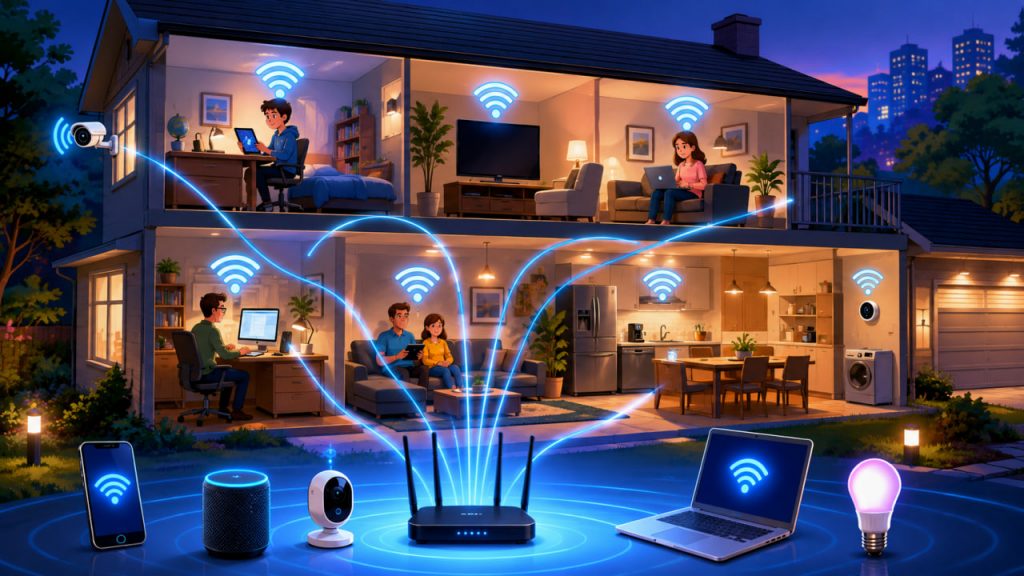
Wi-Fi is the invisible infrastructure behind modern homes. It connects phones, laptops, televisions, security cameras, speakers, game consoles, and smart appliances without requiring a cable for every device.
Yet many households still treat Wi-Fi as a single box placed wherever the internet provider installed it. That often leads to weak signals, unstable video calls, slow downloads, and devices that disconnect in distant rooms.
A good home network is not created by buying the most expensive router. It comes from understanding radio signals, choosing the right equipment, and placing each network component correctly.
What Wi-Fi Actually Is
Wi-Fi is a wireless networking technology that allows nearby devices to exchange data using radio waves.
Your internet connection normally enters the home through fiber, cable, DSL, fixed wireless, or another broadband service. A modem or optical network terminal connects that external service to your home network.
The router then directs traffic between your devices and the internet. Its wireless access point broadcasts the Wi-Fi signal that phones, computers, and other compatible devices can detect.
In many homes, the modem, router, firewall, network switch, and wireless access point are combined in one device supplied by the internet provider.
These functions are different:
- The modem or optical terminal connects your home to the provider.
- The router directs data between networks.
- The access point creates the wireless network.
- The switch connects wired Ethernet devices.
- The firewall filters unwanted network traffic.
CISA explains that firewalls help protect home and small-office networks by shielding them from malicious or unnecessary external traffic.
How Data Travels Over Wi-Fi
When you open a website, your device divides the requested and received information into small units called packets.
The Wi-Fi adapter in your device converts those packets into radio transmissions. The router receives them, processes their destination information, and forwards them through your internet connection.
Responses travel back through the same general route:
Internet service → modem or optical terminal → router → Wi-Fi access point → device.
This happens extremely quickly, but every part of the route can affect performance.
A slow internet plan can limit the entire network. A poorly positioned router can weaken the wireless connection. Heavy local traffic can create congestion even when the internet service itself is fast.
Internet speed and Wi-Fi quality are related, but they are not the same thing.
You can have a fast broadband connection and poor Wi-Fi coverage. You can also have an excellent wireless signal while the external internet connection is temporarily slow.
Understanding the Main Wi-Fi Frequency Bands
Modern home Wi-Fi commonly operates in the 2.4 GHz and 5 GHz frequency ranges. Newer compatible equipment may also use the 6 GHz band.
The FCC notes that lower frequencies generally travel farther, while higher frequencies provide access to broader radio capacity but tend to have shorter practical range and greater difficulty passing through obstacles.
2.4 GHz
The 2.4 GHz band usually provides the longest range and better penetration through walls.
It is useful for:
- Smart-home sensors
- Devices far from the router
- Basic web browsing
- Equipment that supports only older Wi-Fi standards
However, this band is often crowded. Bluetooth equipment, neighboring Wi-Fi networks, and some household devices may compete for the same general spectrum.
5 GHz
The 5 GHz band can provide higher speeds and more usable channels at shorter distances.
It is often the best choice for:
- Streaming high-resolution video
- Gaming
- Video conferencing
- Fast laptop and desktop connections
- Large downloads
Its signal normally weakens more quickly through dense walls and floors than a 2.4 GHz signal.
6 GHz
The 6 GHz band adds additional spectrum for newer Wi-Fi equipment. The FCC opened substantial portions of the 6 GHz range for unlicensed use, expanding the frequencies available to compatible Wi-Fi devices.
It can deliver excellent performance in the same room or nearby areas, especially when many other networks are competing for 2.4 GHz and 5 GHz capacity.
However, both the router and the client device must support the relevant 6 GHz technology. Its practical coverage may also be more limited than that of lower-frequency bands.
Where to Place the Router
Router placement is one of the most important factors in home Wi-Fi performance.
Place the router:
- Near the center of the area requiring coverage
- Above floor level
- In an open position
- Away from thick masonry walls
- Away from large metal objects
- Away from enclosed cabinets
- Away from sources of strong electromagnetic interference
Do not hide the router behind a television, inside a metal cabinet, or at the far end of the home unless that location is unavoidable.
Radio signals spread outward from the access point. A router placed in a corner may send a significant portion of its useful coverage outside the building rather than toward the rooms where it is needed.
In a multistory house, a central stairwell or open landing may provide better coverage than a basement utility room.
The best router position is usually central, elevated, open, and close to the rooms where high-performance devices are used.
When a Single Router Is Enough
A single good router may be sufficient for:
- A small apartment
- An open-plan home
- A compact one-story house
- A household with relatively few connected devices
- A building with lightweight interior walls
Before buying additional equipment, test the existing router in a better location.
Use a phone or laptop to check signal strength and real-world performance in each important room. Test video calls, streaming, and file downloads rather than relying only on the number of signal bars.
If performance drops mainly in one distant room, a different router position may solve the problem without requiring a full mesh system.
When to Use a Mesh Wi-Fi System
A mesh network uses several coordinated access points, often called nodes, to cover a larger area.
Mesh systems are especially useful for:
- Large houses
- Multiple floors
- Long or irregular floor plans
- Buildings with thick walls
- Homes with many weak-signal areas
- Outdoor patios or detached workspaces
The main mesh unit connects to the modem or optical terminal. Additional nodes are positioned throughout the property.
They work together under one network name, allowing devices to move between coverage areas more smoothly than with several unrelated routers.
However, mesh nodes still need a strong connection to one another. Placing a node inside an existing dead zone often produces poor results because it has little usable signal to retransmit.
Place each wireless node approximately between the main router and the weak-coverage area.
Why Ethernet Backhaul Is Better
A mesh system can connect its nodes wirelessly, but Ethernet cables provide a more reliable backhaul.
Backhaul is the connection used by access points to carry traffic back to the main router.
With wired Ethernet backhaul:
- Wireless capacity is preserved for user devices
- Latency is usually lower
- Performance is more consistent
- Walls interfere less with node-to-node communication
- Each access point can deliver stronger practical speeds
For new construction or major renovation, installing Ethernet cabling to offices, television areas, ceiling access points, and utility spaces is one of the best long-term network investments.
Devices that remain in one place should also use Ethernet when practical. Desktop computers, game consoles, televisions, network storage, and workstations often benefit from wired connections.
Use Wi-Fi for mobility and Ethernet for stability.
How to Separate Different Types of Devices
A modern home may contain trusted computers, visitor devices, children’s tablets, cameras, televisions, and inexpensive smart appliances.
They do not all need the same level of network access.
A well-organized home network may include:
- A primary network for trusted personal devices
- A guest network for visitors
- A separate network for smart-home and IoT devices
- A wired segment for high-performance equipment
Guest networks can prevent visitors from directly accessing computers, printers, storage devices, and other resources on the primary network.
Separating smart devices can also reduce the impact of a vulnerable appliance. This may require a router that supports guest isolation, network segmentation, multiple SSIDs, or virtual LANs.
How to Secure a Home Wi-Fi Network
Security should be configured immediately after installation.
NIST recommends using WPA2 or WPA3 protection for home Wi-Fi and choosing a password that is difficult to guess.
CISA recommends WPA3 where available and warns that older wireless protection methods are outdated.
Essential steps include:
- Change the router’s default administrator password
- Use WPA3, or WPA2 when WPA3 is unavailable
- Create a long, unique Wi-Fi password
- Install router firmware updates
- Disable remote administration unless necessary
- Disable WPS when it is not needed
- Use a separate guest network
- Remove unknown connected devices
- Replace routers that no longer receive security updates
CISA also recommends changing factory-set usernames and passwords, restricting access, and encrypting wireless traffic.
The router’s administrator password and the Wi-Fi connection password should not be identical.
Choosing the Right Equipment
Before buying a router or mesh system, consider:
- Home size and construction
- Number of floors
- Internet connection speed
- Number of active devices
- Need for Ethernet ports
- Support for WPA3
- Availability of firmware updates
- Mesh compatibility
- Parental-control requirements
- Guest-network and IoT isolation features
Do not select equipment based only on an advertised maximum speed.
Those numbers are normally theoretical combined radio rates measured under ideal conditions. Real performance depends on distance, interference, client capability, channel width, network traffic, and the quality of the internet connection.
A newer router cannot make an older phone use wireless features that the phone does not support.
Expert Perspective
Cybersecurity guidance from NIST and CISA consistently emphasizes secure encryption, strong credentials, firmware maintenance, and careful access control for home wireless networks.
From a practical network-design perspective, coverage problems should be solved through proper placement, additional access points, and wired backhaul—not simply by increasing advertised router power or purchasing the most expensive model.
The strongest home setup is usually simple: a securely configured router, centrally positioned access points, Ethernet for fixed high-demand equipment, and separate access for guests and less-trusted smart devices.
Interesting Facts
- Wi-Fi and the internet are different technologies.
- A home can have working Wi-Fi even when its external internet service is unavailable.
- Lower-frequency radio signals generally travel farther than higher-frequency signals.
- Thick concrete, brick, metal, mirrors, and some insulated walls can weaken Wi-Fi.
- A mesh node placed in a dead zone may reproduce a weak connection rather than fix it.
- Ethernet connections are not affected by neighboring wireless networks.
- The number of signal bars does not always predict real network speed.
- Many smart-home devices still rely on the 2.4 GHz band.
- Guest networks can improve both security and privacy.
- Router firmware updates may fix security vulnerabilities as well as performance problems.
- A wired access point can outperform a wireless extender.
- Moving a router by only a few meters can noticeably change coverage.
Glossary
- Wi-Fi — A family of technologies that connects devices through local radio communication.
- Router — A device that directs data between a home network and other networks.
- Modem — Equipment that connects a router or device to a broadband service.
- Optical Network Terminal — A device that terminates a fiber-optic internet connection inside or near a building.
- Access Point — Equipment that creates a wireless network.
- Ethernet — A standard for wired local-network connections.
- Packet — A small unit of data transmitted through a network.
- Frequency Band — A range of radio frequencies used for communication.
- Mesh Network — A system of coordinated access points providing wider wireless coverage.
- Node — An individual access point within a mesh system.
- Backhaul — The connection carrying data from an access point to the main router or network.
- SSID — The visible name of a Wi-Fi network.
- WPA2 — A widely used Wi-Fi security protocol.
- WPA3 — A newer Wi-Fi security protocol offering improved protection.
- WPS — A simplified device-connection feature that may create security risks when unnecessarily enabled.
- Firmware — Software installed inside a router or other hardware device.
- Latency — The delay between sending data and receiving a response.
- Bandwidth — The amount of data a connection can carry over a given period.
- IoT Device — An internet-connected appliance, sensor, camera, or other smart device.
- Network Segmentation — Dividing a network into separate sections to control access and improve security.