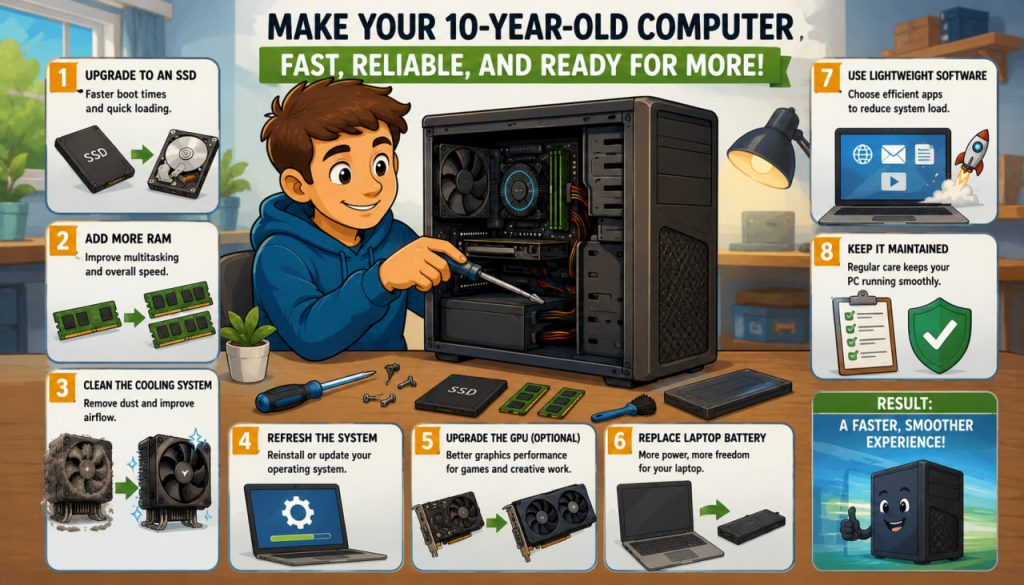
Many people assume that a computer purchased ten years ago is hopelessly outdated and must be replaced. While that can sometimes be true, the reality is often more encouraging. A surprisingly large number of older desktop computers and laptops can still provide excellent performance for everyday tasks if upgraded correctly.
Modern operating systems, web browsers, and applications demand more resources than their predecessors, but strategic hardware improvements can dramatically extend the useful life of aging machines. In many cases, a few targeted upgrades can transform a frustratingly slow computer into a responsive and practical device.
Before spending money on a completely new system, it is worth understanding what upgrades provide the greatest performance improvements.
Why Older Computers Become Slow
Aging hardware is only part of the problem.
Over time, computers often slow down because of:
- Accumulated software
- Background applications
- Fragmented storage systems
- Outdated operating systems
- Increased software requirements
Modern websites alone consume far more memory and processing power than they did a decade ago.
As a result, a computer that once felt fast may struggle with today’s workloads.
However, this does not necessarily mean the hardware is unusable.
Upgrade the Storage Drive First
If a ten-year-old computer still uses a traditional hard disk drive (HDD), replacing it with a solid-state drive (SSD) is usually the single most effective upgrade.
Traditional hard drives rely on spinning magnetic disks and moving mechanical parts.
An SSD uses flash memory and contains no moving components.
Benefits of an SSD include:
- Faster startup times
- Faster application launches
- Improved system responsiveness
- Reduced loading delays
For many older computers, installing an SSD can feel like upgrading to an entirely new machine.
Even an inexpensive SSD often delivers a dramatic performance improvement.
Add More RAM
RAM (Random Access Memory) temporarily stores data that programs actively use.
Insufficient RAM forces the system to rely on slower storage devices.
Many computers built ten years ago shipped with:
- 4 GB of RAM
- 8 GB of RAM
Modern workloads often benefit from:
- 8 GB minimum
- 16 GB preferred
Adding memory can improve:
- Web browsing
- Multitasking
- Office applications
- General responsiveness
Before upgrading, users should verify motherboard compatibility and maximum supported memory capacity.
Clean the Cooling System
Dust accumulation is a common cause of poor performance.
Over time, dust can block airflow and reduce cooling efficiency.
When components become too hot, modern processors automatically reduce performance to prevent damage.
This process is known as thermal throttling.
Cleaning:
- Fans
- Air vents
- Heat sinks
can often improve system stability and responsiveness.
For older desktops, replacing thermal paste between the processor and heat sink may also help.
Reinstall or Refresh the Operating System
Years of software installations, updates, and background processes can gradually reduce performance.
A clean operating system installation often removes unnecessary clutter.
Benefits may include:
- Faster startup
- Reduced background activity
- Better stability
- More available storage
Many users are surprised by how much faster an older computer feels after a fresh installation.
Always back up important files before performing major system maintenance.
Upgrade the Graphics Card (Desktop Systems)
For desktop computers, upgrading the graphics processing unit (GPU) may provide additional benefits.
This is particularly useful for:
- Gaming
- Video editing
- 3D modeling
- Graphics-intensive applications
However, not every older system benefits equally.
Processor limitations, power supply capacity, and motherboard compatibility must be considered.
In many cases, SSD and RAM upgrades provide better value than a new graphics card.
Consider a Processor Upgrade
Some desktop motherboards support newer processors within the same hardware generation.
A processor upgrade can improve:
- Multitasking
- Video encoding
- Productivity software
- Overall system speed
However, CPU upgrades are often less cost-effective than SSD or RAM improvements.
The available upgrade options depend heavily on the motherboard’s socket type and chipset.
Replace the Battery in Older Laptops
Laptop batteries naturally degrade over time.
After a decade, many batteries retain only a small fraction of their original capacity.
Replacing the battery can significantly improve:
- Portability
- Reliability
- Daily usability
In some cases, an old laptop may feel nearly new once equipped with both a fresh battery and an SSD.
Use Lightweight Software
Older hardware benefits from efficient software choices.
Examples include:
- Lightweight web browsers
- Efficient office applications
- Streamlined media players
- Reduced background services
Modern software varies enormously in resource consumption.
Choosing optimized applications can noticeably improve performance on aging systems.
When Upgrades No Longer Make Sense
Despite the benefits of upgrades, there are limits.
Some systems may face challenges such as:
- Obsolete processors
- Unsupported hardware
- Limited upgrade paths
- Compatibility issues
- Excessive power consumption
If major components require replacement simultaneously, purchasing a new computer may become more economical.
The key is balancing upgrade costs against expected performance gains.
Expert Perspective
Computer engineer Gene Amdahl famously emphasized that overall system performance depends on eliminating bottlenecks rather than improving only one component.
This principle remains highly relevant today.
Upgrading a storage drive while ignoring insufficient memory—or adding memory while retaining an extremely slow hard drive—may not produce optimal results.
The most successful upgrades address the system’s primary limitations first.
Can a Ten-Year-Old Computer Still Be Useful?
Absolutely.
Many older computers remain perfectly capable of handling:
- Web browsing
- Office work
- Video streaming
- Online learning
- Basic photo editing
The exact potential depends on the original hardware and intended workload.
A ten-year-old computer will not compete with modern high-end workstations, but it can still provide excellent value for everyday tasks.
Conclusion
A decade-old computer is not necessarily obsolete. In many cases, upgrading the storage drive to an SSD, increasing RAM, cleaning the cooling system, and refreshing the operating system can dramatically improve performance. These relatively inexpensive changes often extend a computer’s useful lifespan by several years.
Before replacing an older machine, it is worth evaluating its upgrade potential. A thoughtful combination of hardware improvements and software optimization may provide a faster, more responsive system at a fraction of the cost of a new computer.
Interesting Facts
- Replacing an HDD with an SSD is often the most noticeable computer upgrade available.
- Many desktop computers can remain useful for well over ten years with proper maintenance.
- Dust buildup can significantly reduce performance by causing thermal throttling.
- Modern web browsers often consume more memory than entire operating systems did decades ago.
- Laptop batteries naturally lose capacity even when not heavily used.
- Some older business-class computers continue operating reliably after more than a decade of service.
Glossary
- SSD (Solid-State Drive) — A storage device that uses flash memory instead of spinning disks.
- HDD (Hard Disk Drive) — A traditional storage device that stores data on rotating magnetic disks.
- RAM (Random Access Memory) — Temporary memory used by active programs and operating system processes.
- Thermal Throttling — Automatic reduction of performance to prevent overheating.
- GPU (Graphics Processing Unit) — A processor specialized for graphics and visual computations.
- Chipset — A group of electronic components that manage communication between hardware devices on a motherboard.