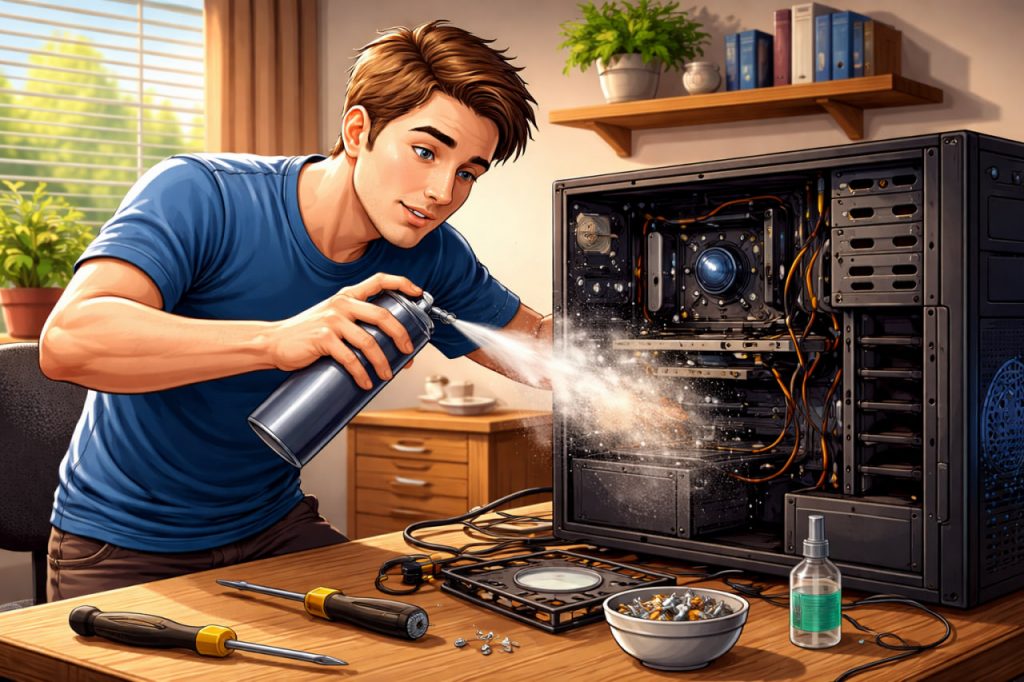
Over time, every computer accumulates dust inside its case. This may seem harmless at first, but dust buildup can significantly affect performance and longevity. Regular cleaning helps maintain proper airflow, keeps components cool, and reduces the risk of overheating. Understanding why and how to safely clean your computer is essential for keeping it running efficiently.
Why Dust Is a Problem
Dust can block airflow inside the computer, preventing fans and cooling systems from working effectively. When airflow is restricted, components such as the CPU, GPU, and power supply may overheat. As experts note:
“Even a thin layer of dust can reduce cooling efficiency and increase internal temperatures.”
Higher temperatures can lead to reduced performance, unexpected shutdowns, and long-term hardware damage.
Signs Your Computer Needs Cleaning
There are several clear signs that your system may need cleaning. These include loud or constantly running fans, increased temperatures, slower performance, and visible dust around vents. In more severe cases, the computer may shut down automatically to prevent overheating.
How Often Should You Clean It
The frequency of cleaning depends on the environment. In a clean room, cleaning every 6–12 months may be enough. However, in dusty environments or homes with pets, more frequent cleaning may be necessary. Regular maintenance helps prevent excessive buildup and keeps your system stable.
How to Clean Your Computer Safely
Before cleaning, always turn off the computer and disconnect it from power. Use compressed air to remove dust from fans, vents, and internal components. Hold the fan blades in place while cleaning to prevent damage from spinning. Avoid using a vacuum cleaner inside the case, as it may create static electricity.
Use a soft brush if needed to gently remove stubborn dust. Make sure to clean areas such as cooling fans, heat sinks, filters, and ventilation openings. For laptops, focus on external vents unless you are experienced with disassembly.
Important Safety Tips
Never use water or cleaning liquids inside your computer. Avoid touching sensitive components unnecessarily. Work in a dry environment and, if possible, use anti-static precautions. Proper handling ensures that cleaning does not cause accidental damage.
Benefits of Regular Cleaning
Keeping your computer clean improves airflow, reduces noise, and helps maintain consistent performance. It can also extend the lifespan of hardware components. Regular cleaning is a simple but effective way to ensure your computer operates reliably over time.
A Simple Habit With Big Impact
Cleaning your computer may take only a short amount of time, but it provides long-term benefits. By removing dust and maintaining proper airflow, you protect your system from overheating and ensure it continues to function efficiently.
Interesting Facts
- Dust can act as an insulating layer, trapping heat inside the system.
- Overheating may reduce a computer’s performance automatically.
- Fans work harder when airflow is restricted, causing more noise.
- Regular cleaning can extend hardware lifespan.
- Compressed air is one of the safest cleaning tools.
Glossary
- CPU — the central processor that performs calculations.
- GPU — a component responsible for graphics processing.
- Cooling System — fans and heat sinks that regulate temperature.
- Heat Sink — a component that dissipates heat from hardware.
- Airflow — the movement of air used to cool internal components.